
How to Use Review Radar for Amazon
Spot fake and manipulated Amazon reviews before you buy
Quick Start
- 1Install Review Radar for Amazon from the Chrome Web Store
- 2Go to any Amazon product page
- 3Scroll to the reviews section
- 4Look for coloured indicators next to each review

Understanding the Indicators
Each review gets a coloured badge showing how trustworthy it appears:
Suspicious
Strong indicators of manipulation - paid, incentivised, or competitor attack.
Questionable
Several red flags suggest this may be incentivised or promotional.
Uncertain
Mixed signals - could go either way. Read carefully.
Tentatively Real
Appears genuine with minor uncertainties. Generally trustworthy.
Likely Real
Shows clear signs of authentic, unprompted customer experience.
Viewing Details
Hover over any indicator to see why it received that verdict. The tooltip shows:
- Flags - Specific issues detected (e.g., "Generic praise", "Unverified purchase")
- Summary - A brief explanation of the overall assessment

What Gets Flagged
Review Radar for Amazon sends review text to our servers where AI analyses it for manipulation patterns. We look for language red flags in individual reviews, plus suspicious patterns across multiple products:
- Incentivised reviews - Signs of free products, review clubs, or payment for reviews
- Promotional language - Marketing-style copy that reads like a product description
- Competitor attacks - Suspicious negative reviews that may be planted by rivals
- Vine reviews - Amazon's free product programme (flagged for transparency)
- Generic praise - Vague reviews that could apply to any product
- Suspicious timing - Clusters of reviews posted on the same day (detected across all users)
- Reviewer patterns - Reviewers with history of flagged reviews across products
Pattern detection uses anonymised data - we cannot identify individual reviewers.
How Scanning Works
Review Radar for Amazon automatically scans reviews when you scroll to them. This saves your monthly quota for reviews you actually see.
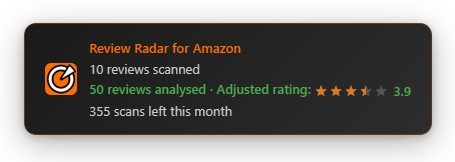
When a scan starts, you'll see a product overview box in the top-right corner showing how many reviews are being scanned, your remaining quota, and the adjusted star rating — what the product's rating would be with suspicious reviews penalised.
How the Adjusted Rating Works
The adjusted rating reflects what the product's star rating would look like if you could trust every review. Trusted reviews keep their original stars, while suspicious reviews have their ratings inverted — a fake 5-star review counts as 1 star, and vice versa. Uncertain reviews are excluded entirely. Recent reviews carry more weight than older ones, so the rating reflects the current state of the product.
The adjusted rating draws on reviews analysed by all Review Radar for Amazon users, not just your own scans. It appears once 8 or more reviews for a product have been analysed.
To scan more reviews on a product:
- 1Click "See all reviews" on the product page
- 2Scroll down to load additional reviews
- 3New reviews are scanned automatically as they appear
Each scan checks a batch of reviews. For Free and Pro users, this counts towards your monthly limit. Power Users have unlimited scans.
Free vs Pro vs Power User
| Feature | Free | Pro | Power User |
| Scans per month | 100 | 1,000 | Unlimited |
| All detection features | Yes | Yes | Yes |
| Priority support | - | Yes | Yes |
How to Upgrade
To upgrade to Pro or Power User:
- 1Click the Review Radar for Amazon icon in your browser toolbar
- 2Click the "Upgrade to Pro" button
- 3Complete your purchase on the checkout page
- 4You'll receive a licence key by email within minutes
Activating a Licence
After purchasing, enter your licence key to unlock your upgrade:
- 1Click the Review Radar for Amazon icon in your browser toolbar
- 2Paste your licence key into the "Licence Key" field
- 3Click "Activate"
Your upgrade takes effect immediately.

Checking Your Usage
To see how many scans you've used this month:
- 1Click the Review Radar for Amazon icon in your toolbar
- 2Your usage is shown at the bottom of the popup
Your scan count resets at the start of each calendar month. Power Users will see "Unlimited" instead of a count.
Tips for Spotting Manipulation
- Check the ratio - If most reviews are red/orange, be very cautious
- Read the yellows - Mixed signal reviews often contain useful insights
- Verified ≠ genuine - Review clubs game verified purchase status via refunds
- Watch for marketing speak - Real customers say "this thing" not the full brand name
- Check reviewer profiles - Click through to see if they review many similar products
- Consider the product - Cheap electronics and supplements attract more manipulation
- Trust your instincts - If something feels off, it probably is
Troubleshooting
Indicators don't appear
Try refreshing the page. Make sure you're on an Amazon product page with reviews. The extension may take a moment to scan reviews.
All reviews show "Scanning..."
The scan is still in progress. Wait a few seconds for results to appear.
"Limit Reached" message
This message appears when you've hit either your monthly scan quota or the per-minute rate limit. Monthly limits reset at the start of each calendar month. Per-minute rate limits are temporary and reset after a short wait. These limits help us protect our servers from abuse and ensure fair access for all users. Upgrade to Pro or Power User for higher monthly quotas.
Reviews show "Error"
There was a temporary problem scanning these reviews. Try refreshing the page.
Need More Help?
If you're having trouble or have a feature request, email us at info@jollygoodapps.com
Related Resources
- Jolly Good Apps - Explore our other browser extensions
- Blog - Tips for spotting fake reviews and shopping smarter
- Timestamp Bookmarks for YouTube - Save multiple timestamps in YouTube videos
- Privacy Policy - How we handle your data
- About Us - Learn more about Jolly Good Apps